
Part 1: A Complete Guide to Updating Android Auto in Your
Car
Introduction
How to update Android Auto in car is an essential topic because If you drive a modern car, you must have heard of Android Auto. It is a feature
that connects your smartphone to the car’s infotainment system, so that you can
listen to music, receive calls, use navigation, and that too without having to
pick up the phone. But over time, this application keeps getting updates. These
updates not only fix bugs but also add new features.
I remember when I first used Android Auto in my car, Google Maps would often
freeze and voice commands wouldn’t work properly. At the time, I thought that
maybe the system itself was broken, but the real problem was that I was using
an older version. When I updated it, all the problems went away and driving
became easier.
Background
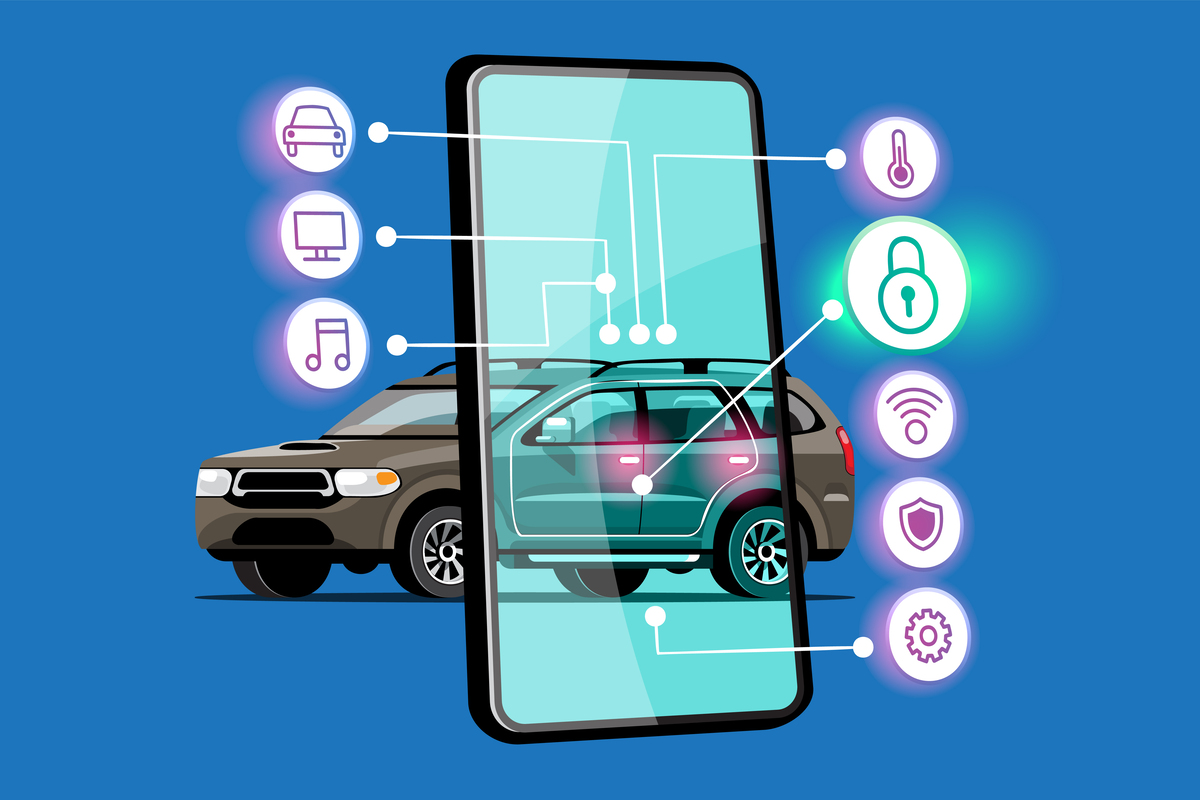
Android Auto is an invention by Google that aims to make using a smartphone
while driving safer. Since it is dangerous to look at your phone while driving,
Google has made it possible for most of the phone’s important apps to appear on
the car’s screen.
But this system is not something you can install once and forget about. It is
essential to update from time to time because:
New features are only available in updated versions.
Older versions have bugs and crashing issues.
Getting security updates keeps your data safe.
Importance
Imagine if you are on a trip and Maps suddenly closes or stops responding to
voice commands, how annoying would it be? This often happens due to lack of
updates. That is why updating is inevitable.
Moreover, the compatibility of new apps is improved through updates. For example,
Spotify or WhatsApp calls used to work in a limited way before, but started
working much better after the update.
Step-by-Step Guide
Now let’s come to the main part: how to update android auto in car. This
process may seem complicated, but it’s actually quite simple.
Step 1: Prepare your phone
First, make sure your Android phone is connected to the internet.
It’s best to use a Wi-Fi connection so that the update is fast and secure.
Step 2: Go to the Google Play Store
Open the Google Play Store on your phone.
Type “Android Auto” in the search bar.
Step 3: Check for updates
If an update is available, you’ll see an “Update” button.
Click on it and let the update complete.
Step 4: Restart your car’s infotainment system
Once the update is complete, restart your car’s system.
Connect your phone to the car again (via USB or wireless).
Step 5: Check settings
New features are often available in “Settings” after an update.
For example, dark mode, a new layout, or improved voice commands.
Personal experience
When I updated my car, the biggest change I noticed was that the navigation
became smoother. Previously, the location would sometimes freeze, but after the
update, this problem was resolved. Also, the new design was much easier to use,
especially the larger music player controls.
Part II: Features, Problems, and Solutions After the Update
New Features After the Update
The first noticeable difference after updating Android Auto is its interface.
In the new updates, Google has emphasized on making it simpler, easier to use,
and safer while driving.
Improved Layout: The new layout is designed in such a way that you can see
music, messages, and navigation all at once. This feature is very useful for
the driver.
Improved Voice Commands: Earlier, Google Assistant did not understand the
command correctly many times, but after the update, it has become faster and
more accurate.
Dark Mode: After the update, the dark mode has been improved so that there is
less strain on the eyes while driving at night.
Support for more apps: Previously, limited apps were running, but now apps like
WhatsApp calls, Spotify, and Zoom are also running better.
Speed and performance improvements: Android Auto runs smoother after the update
and is less likely to freeze.
I remember when I first updated, the biggest surprise was how easy the new
music player design was. Previously, there were small buttons that were
difficult to press, but now the larger controls make it easier to use while
driving.
Common issues and solutions
Some users also experience issues after the update. Here are some common issues
and solutions:
Problem: The phone won’t connect to the car after the update.
Solution:
First, check the USB cable to make sure it’s connected properly.
If you’re using a wireless connection, turn both Wi-Fi and Bluetooth on/off
again.
Restart the car’s system and try connecting again.
Problem: Google Maps keeps crashing.
Solution:
Set location services to high accuracy on your phone.
Go to the Play Store and check if Google Maps is also updated.
Problem: Voice commands are not working properly.
Solution:
Make sure that microphone permissions are granted.
Sometimes the problem occurs due to background noise, so try closing the
windows inside the car.
Problem: The system seems slow after the update.
Solution:
Restart the phone.
Clear the cache so that old data does not affect performance.
If the problem still persists, uninstall and reinstall from the Play Store.
Conclusion
In the end, it can be said that if you are wondering how to update android auto
in car, the answer is that it is a very easy and beneficial process. New
features and performance are added in addition to driving being safer. My personal
experience is that after the update, driving becomes more relaxed and enjoyable
because you don’t need to take your phone in your hand, everything is available
on the car screen in a better and faster way.
Visit our Homepage
For more interesting tech guides, mobile and car software updates. Here you
will find complete and easy answers to questions like “how to update android auto in car”.