


Intro: Free vs Paid Photo Editors
I remember when I edited my
first photo with a free app – I thought that was enough. But as my skills
improved, I realized that paid tools have some features that are not available
in free apps. If you are also confused about the difference between free vs
paid photo editors and what is the best option for you, then this guide is for
you.
💡 Is every special feature available only in paid tools?
I also used to think that
only paid software gives professional quality, but this is not necessarily the
case. Nowadays many free photo editors have become so powerful that basic to
intermediate level work can be done easily.
🔍 Free Photo Editors – What do they offer?
Let’s first see what
features the free apps or software offer:
Basic Editing Tools: Crop,
resize, brightness, contrast, saturation adjustment
Filters & Effects:
Instagram-style filters, auto enhance
Text Tools: Option to add
fonts and captions
Cloud Syncing: Some tools
sync with Google Drive or Dropbox
Mobile Friendly: Apps like
Snapseed, Canva and Pixlr are available for free
🔥 Popular Free Photo Editors:
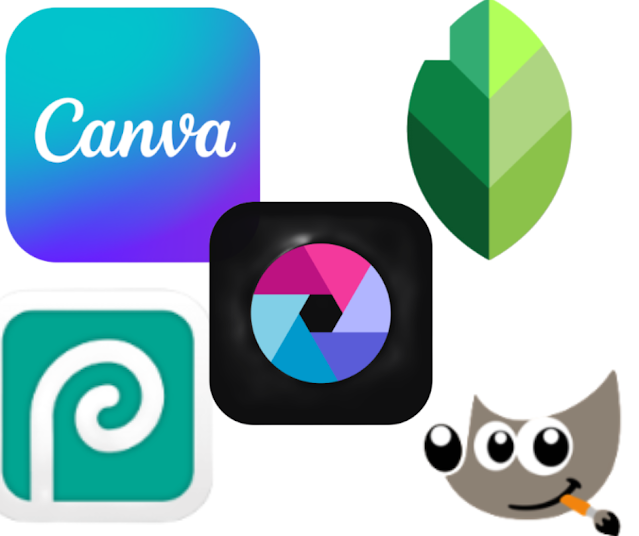
- Snapseed: Made by Google,
best for mobile editing - Pixlr: Available on both
web and mobile - Photopea: Interface like
free web version of Photoshop - Canva (Free): Design +
editing combined - GIMP: Powerful open-source
editor for PC users
I like it If you are a
beginner or only work for social media, then free apps are absolutely enough.
💰 Paid Photo Editors – What Special Do They Offer?
Paid photo editors are
perfect for those people who do design, photography or editing work at a
professional level. In these, you get advanced features which are essential for
time-saving and high-quality results.
🎯 Key Features:
- Layered Editing: Control
each element separately - RAW File Support: A must
for DSLR images - AI-Based Tools: Background
remove, smart resize, auto color balance - Batch Processing: Edit
multiple images at once - Custom Plugins: Add-ons to
enhance your functionality
💎 Top Paid Editors:
- Adobe Photoshop: Industry
standard for professionals - Lightroom: Perfect for
Photographers - Affinity Photo: One-time
payment pro-level editor - Canva Pro: Best for Social
media managers - Luminar Neo: AI-powered
editor for advanced use
for a client — it is difficult to compromise on quality. Paid tools help here.
🔁 Free vs Paid Photo Editors – A Simple Comparison
If you are confused about the
real difference between free and paid photo editors, then understand it in
simple words:
Free photo editors like
Snapseed, Canva Free or GIMP are perfect for beginners. In these, you get basic
editing tools like crop, brightness adjust, filters and simple text overlay.
But their limitation is that you do not get advanced tools, batch processing or
RAW file support.
Paid photo editors like
Adobe Photoshop, Lightroom or Affinity Photo are for people who do professional
work – like freelance designers, photographers or social media agencies. In
tools, advanced features such as layers, AI tools, high-resolution export and
client-ready formats are available.
📱 Mobile Apps – What is the difference between free and paid?
The options are the same
for mobile users as well. Canva, Lightroom Mobile, and Snapseed all give free
and premium versions.
For free, you get
watermarks, limited templates, and ads.
In the paid version, you
get advanced export options and a no-ads experience.
I used Canva free myself,
but after buying Pro, I found the animation and branding quite useful.
🧠 Understand your needs
If you only edit 4-5 images
per month — do you need Photoshop for $10/month?
No! You can do the same
thing for free using Photopea or GIMP.
But if you have to design
for clients every week, then buying Canva Pro or Affinity Photo becomes a smart
investment.
📊 Price Comparison – What is the cost of each tool?
Tool |
Type |
Price |
|
Canva Pro |
Paid |
$12.99/month |
|
Canva Free |
Free |
$0 |
|
Photoshop |
Paid |
$20.99/month (Adobe) |
|
Photopea |
Free |
$0 |
|
Affinity Photo |
Paid |
One-time $69.99 |
|
GIMP |
Free |
$0 |
Tip: Adobe and Canva also provide
student discounts!
🎨 Creativity vs Functionality
Free tools are enough for
creativity – you can work faster with templates, filters and drag-drop
interface. But paid tools are better in functionality:
- Better control
- Higher export quality
- Client-friendly formats
🔁 Can You Use Both?
Absolutely! You can start
with Canva Free and trial Canva Pro or Photoshop when needed. Mixing tools is a
smart approach.
I personally use both
Snapseed + Canva Pro, as I work on both mobile and desktop platforms.
🧾 Final Thoughts – What should I choose?
If you are also confused
about which is the best among free vs paid photo editors, then it depends on
your:
- Skill level
- Usage frequency
- Professional or personal
work - Budget
tools Wait. Invest only when you feel you need more.
This investment will
improve your productivity, creativity and quality in the long term.
If you like more informative articles like this, visit our Techeasely homepage and explore new topics:
💬 FAQs – Free vs Paid Photo Editors
Q1: Can free photo editors also create professional designs?
Yes, tools like Canva, Photopea and GIMP give decent professional results.
Q2: Is there a free alternative to Photoshop?
Photopea and GIMP are free alternatives to Photoshop.
Q3: Are there paid mobile apps as well?
Yes, some apps, such as Canva Pro and Lightroom Mobile, have paid versions.
Q4: Is it necessary to take paid tools?
If you do client work or high-level design then yes, otherwise not.
Q5: Is the free version of Canva enough?
It is enough for beginners, but Pro has more templates and brand tools.