
When I first used CapCut, I thought I would have to write
captions manually – but then I discovered Cap Cut’s Auto Caption AI feature!
Imagine if just by pressing a button, the entire text of your video is
automatically written? Wow! In this guide, I am sharing full details about what
CapCut Auto Caption AI is, how it works, and how you can make the best use of
it.
🧠 What is CapCut Auto
Caption AI?
Speaking of humanized, this feature is a game-changer for
people who create short-form content or YouTube Shorts.
CapCut Auto Caption AI is an AI-powered tool that listens to
your video’s audio and automatically generates subtitles or captions.
You don’t need to manually type anything — the AI
understands every word and converts it into text.
🎯 Who can use it?
Think about it if you:
Create content for TikTok, Reels or YouTube Shorts
Want to make your videos more inclusive and engaging?
Want to save time in caption writing
Then CapCut Auto Caption AI is perfect for you.

📲 Step-by-Step Guide:
How to Use CapCut Auto Caption AI?
I think these steps will be very helpful for every beginner:
✅ Step 1: Install CapCut App
Android users: Install CapCut from Play Store
iPhone users: Download from App Store
The app is free and also beginner-friendly.
✅ Step 2: Start a new project
Open CapCut
Tap on “New Project”
Choose your video (which is saved in the gallery)
✅ Step 3: Option to add captions
When the video is loaded in the timeline, scroll down
Choose the “Text” option
There you will get the option of Auto Captions – click on it
✅ Step 4: Select the language
Here AI understands your spoken language:
English
Urdu
Hindi
Or multiple regional languages
Tip: Select the language which is being spoken in your video
for best results.
✅ Step 5: Generate Captions
Tap on the “Start” button
Within 10-15 seconds, the AI automatically listens to your
entire audio and creates captions
These captions are synced with the time!
I think this is the most amazing feature — the AI does all
the hard work itself.
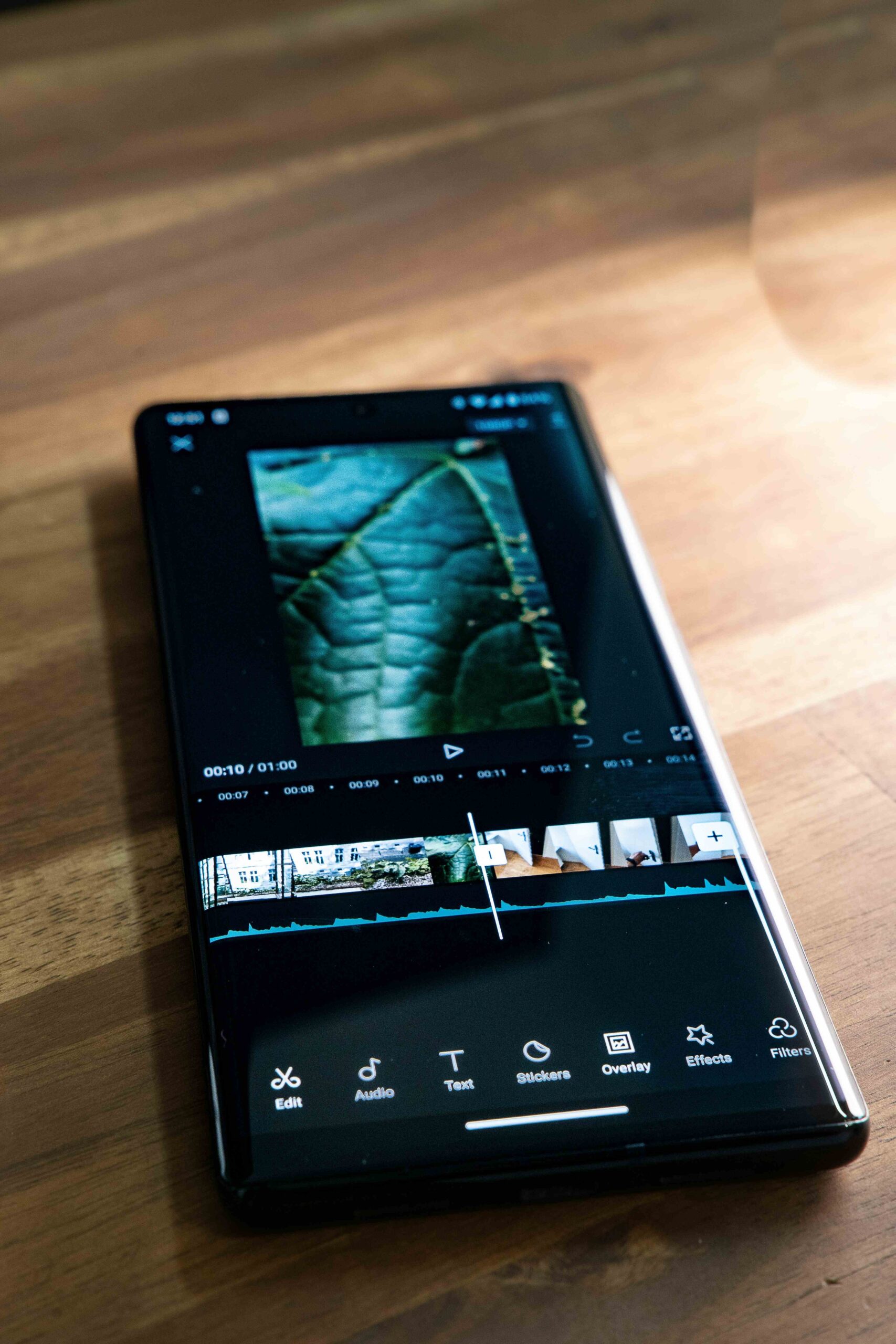
✅ Step 6: Edit & Customize
After the captions are generated, you can:
Change the font of the text
Set the size and color
Adjust the alignment
You will notice that every text block will also appear in
the timeline.
💡 Real Use Case: What I
Learned
I edited a motivational video in CapCut — and automatic
captions were ready in just 2 minutes.
Viewers retention doubled
Video became more understandable
Engagement increased (likes + comments)
Imagine if you create content daily, how much time will this
feature save!
🔐 Is CapCut Auto Caption
AI Secure?
Absolutely. Your videos or audio are not stored on any
server permanently. CapCut’s AI feature analyzes audio temporarily and saves
the result only on your device.
🛠️ Breakdown of CapCut Auto Caption AI Tools
|
Feature |
Description |
|
Multi-language Support |
English, Urdu, |
|
Auto Transcription |
Audio to text |
|
Timeline Sync |
Accurate time |
|
Manual Edit Option |
Every caption can be edited |
|
Font Customization |
Stylish text |
🧭 Best Practices for Using
Captions
You’ll notice that good
captions quadruple the engagement. Follow these tips:
Use high contrast colors (white on black, yellow on dark)
Font should be readable (bold or clean font)
Edit spelling errors (AI sometimes makes minor mistakes)
Adjust timing – it should be synced with every dialogue
If you want to explore more digital tools, visit the Techeasely home page — there you’ll find beginner’s guides for every level.
⚖️ CapCut vs Manual Captions
Feature Manual Captions CapCut AI Captions
Time Taken 30–60 minutes 2–3 minutes
Accuracy Depends on person 85–90% accurate
Ease of Use Hard for beginners Very easy
Customization Limited Advanced styling options
I think CapCut AI is best for beginners – especially those
who get less time.
🤖 Does AI always listen
correctly?
Mostly yes, but:
If there is background noise, errors can occur
There seems to be some missing in accents or fast talking.
Solution? After generating the captions, do some editing.
🧩Advanced Tips for Pro
Users
Use Emojis in captions for more fun
Add Background Shapes to make text pop
Use Auto Caption + Translate Tool for multi-lingual videos
Export in HD to keep text crisp
🔄 Export & Upload
Once your captions are perfect:
Click “Export” on top-right
Choose resolution (720p, 1080p, 4K)
Save in gallery or upload directly to TikTok, YouTube, or
Reels
🔚 Final Thoughts –
CapCut Auto Caption AI Worth?
I think if you are new to content creation or want to save
time, then CapCut Auto Caption AI is the best assistant for you.
This feature is free, smart, and doubles the value of
content It gives you the right captions. Just a 2-3 minute process and you have
ready-made captions that make every viewer feel connected.
If you want to design posts with videos, then definitely check out the Canva Beginners Guide.
📢 FAQs – CapCut Auto Caption AI
Q1: Is CapCut Auto Caption free?
Yes, this function of CapCut is completely free.
Q2: Does it support Urdu language?
Yes, CapCut has now launched support for both Urdu and Hindi languages.
Q3: Are AI captions accurate?
They are 85–90% accurate, but edit option is available.
Q4: Can it be used in desktop version as well?
Currently, CapCut’s AI feature works best on mobile app.
Q5: Is internet required?
Yes, you need internet for some time to generate captions.
Q6: What format are captions in?
They are in text format or are synchronized with the chronology.