
tried it, I found out that Canva is perfect for beginners as well. Today I will
tell you step-by-step how to use Canva and how it is helpful for beginners,
that too without design skills!
🧠 What is Canva? Understanding is very important
Canva is an online design
tool where you can easily create visuals like social media posts, flyers,
posters, business cards, presentations, and YouTube thumbnails. Its interface
is so friendly that you don’t need any designing degree.
I feel Canva is a blessing
for those people who want to make their own designs but find tools like
Photoshop difficult.
💻 Step 1: How do I create an account on Canva?
Go to www.canva.com.
Click on “Sign
Up”.
Make an account on
Facebook, Google, or email.
As soon as you create an
account, you will immediately see ready-made templates.
Tip: If you want to design
from your phone, install Canva’s mobile app – it’s easy and fun to use.
🧰 Step 2: Dashboard Tour – What do you get here?
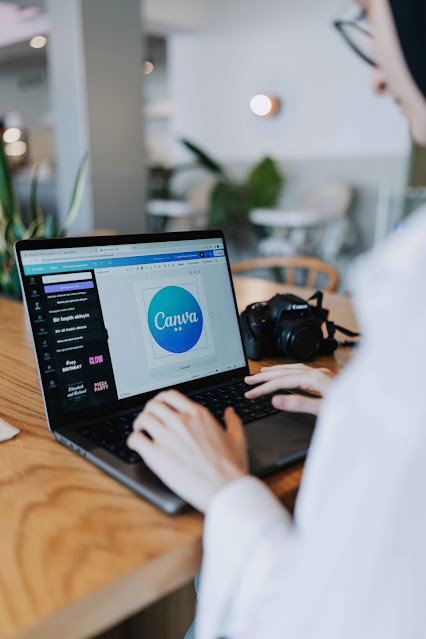
Canva’s dashboard is so
simple that I understood it at first glance:
- Templates: Pre-made designs
for everything. - Elements: Shapes, emoji,
lines, stickers – all drag & drop ready. - Text: Stylish fonts and
cool text designs. - Photos/Videos: Free and
paid libraries available for direct use. - Uploads: You can also add
your photos or logos.
Imagine if you want to
design a motivational quote — Canva will literally make it in 1 minute!
Step 3: How to start a new design?
Design” button.
Choose your size (like an
Instagram post or YouTube thumbnail).
A blank canvas will appear
— just start the drag n drop.
Tip: I find the Instagram
post template the easiest for beginners — because the size and layout are
already ready.
🧾Step 4: Learn to use templates
the best shortcut for beginners:
Click on
“Templates” in the left menu.
Write the keyword of your
design purpose (like “Resume”, “YouTube Banner”)
Choose any template and
customize it
colors, and images without any tension.
🖋Step 5: Change the font style and enter text.
Adding text to Canva is
very easy:
Click on the
“Text” option
Choose Heading, Subheading,
or Body text
You can drag the text box
onto the canvas and arrange it where you like.
Adjusting font styles and
colors is also easy. Pre-made text styles are also available for Canva
beginners.
📸 Step 6: Adding Images and Videos
Explore the stock library
from the “Photos” or “Videos” tab.
Drag & drop and place
on the canvas.
You can also add your
images by going to “Uploads”.
I think you can give a
professional touch to your design by adding images and videos.
🎨 Step 7: Customize your design
Change the color by selecting
elements or text.
Arrange elements using the
Position option
Enhance the design by
applying effects and filters
Canva also has an undo/redo
option for beginners so that you can experiment without fear.
🔒 Step 8: How to save and download the design?
After the design is
complete, press the “Share” button
Select “Download”
Choose PNG, JPG, or PDF
format
Free users also get
high-quality images. Premium users also get transparent background and resize
option.
📱 Step 9: Use of Canva Mobile App
The mobile version of Canva
is also powerful:
Open the app and login
Same dashboard and features
are available
Touch gestures make
designing even more fun
Personally, I find the app
for Canva really useful while traveling.
📈 Step 10: How to earn money from Canva?
If you learn Canva, then
this skill can become a source of earning for you:
Create gigs on Fiverr or
Upwork (logo design, social media post, resume design)
Promote your design service
on Instagram or Facebook
You can earn money by
taking freelance projects
Imagine if you make a
design for $10 and get 3 orders daily, then you can easily make $900+ a month.
✅ Real Tools + Experience
I have myself made logos,
ebook covers, and ads with Canva. Canva’s real tools like:
Brand Kit (Pro Version) –
Set your fonts, colors
Content Planner – Schedule
social media
Magic Resize – Change size
instantly for every platform
📌 Final Thoughts – Canva Beginner’s Best Friend
If you are thinking that it
will be difficult for beginners to use Canva, then now it must be clear that
this tool is for people of every level.
After a few days of
practice, you can become a pro user of Canva – without any design background.
Sign up today to develop
your own creative design!
If you need more digital tools, design guides or beginner tutorials, do check out the Techeasely Home Page – every topic is explained step-by-step.
📣 FAQs – How to Use Canva Beginners
Q1: What Is Canva free?
Yes, a free version of Canva is available which has a lot of features.
Q2: Can videos be made on Canva?
Absolutely, short videos and animated social posts can be designed in Canva.
Q3: Is there a mobile Canva app?
Indeed, Canva is accessible on both the iOS and Android operating systems.
Q4: Can Urdu text be written in Canva?
Yes, Canva supports Urdu text. You can write using Google Input Tools.
Q5: Can one earn money from Canva?
Yes. It is possible to earn money from Canva through freelancing and design services.