
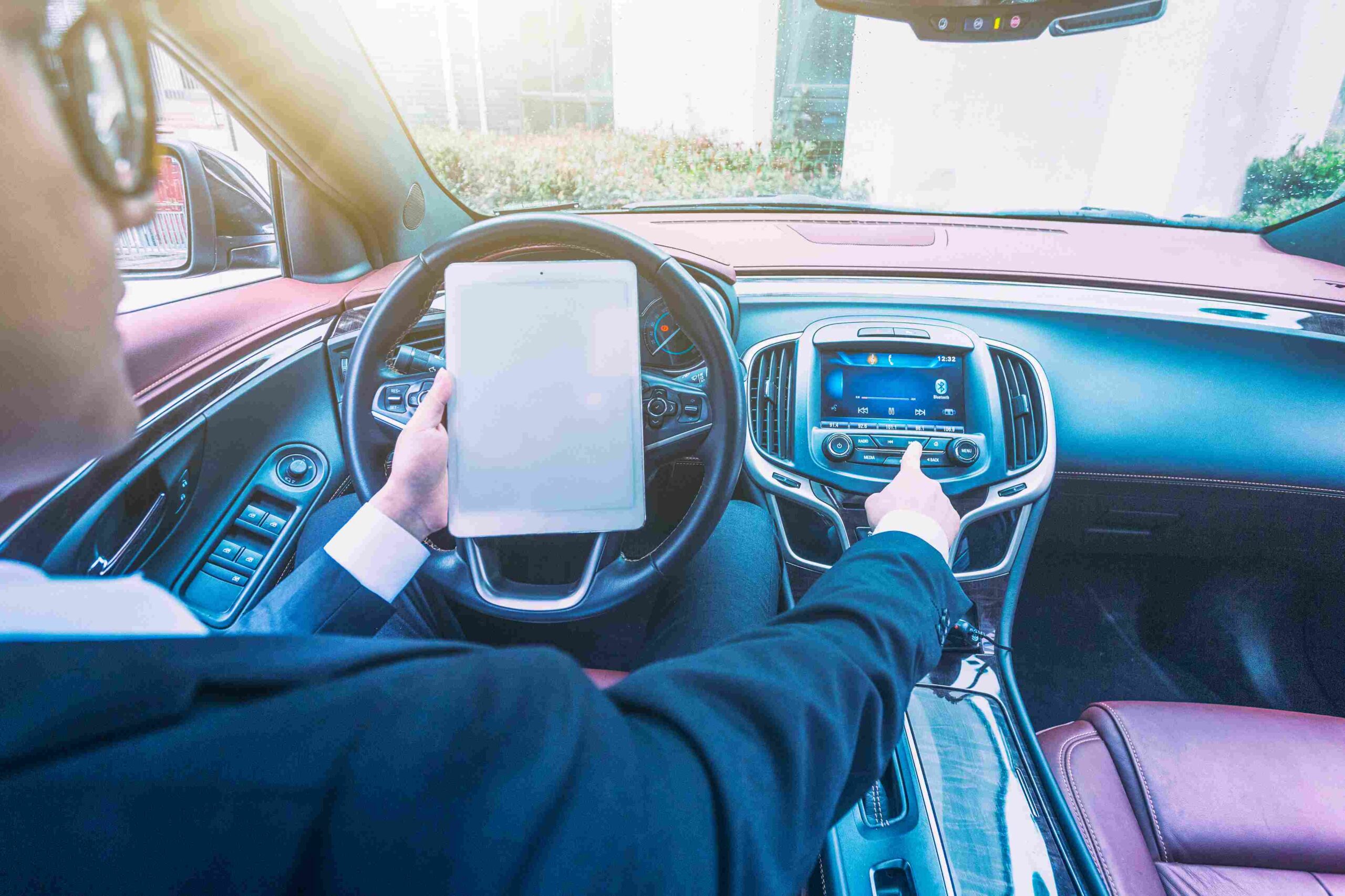
Step-by-Step Guide
How to update Android Auto on car was the first question that came to my mind when I heard about this app. I remember the first time I used Android Auto in the car, I
was very excited. My friends told me that this app makes driving easy and safe.
But honestly, it was a bit confusing in the beginning. The phone would connect,
sometimes it would start, sometimes the app would freeze. At that time I did
not understand what the issue was. After doing a little research, I found out
that the problem was with the update. And this is where my journey started, how
to update Android Auto on the car.
Scene of my personal experience
One day I was going on a road trip. It was a long drive and
I needed a map. I thought I would connect Android Auto so that the navigation
would come on the screen. But as soon as I connected the phone, the screen went
black. Just imagine the panic of that time! Honestly, I thought the car system
was damaged. But when I checked a little, it was a simple update issue. That
day I decided that I will not skip updates from now on.
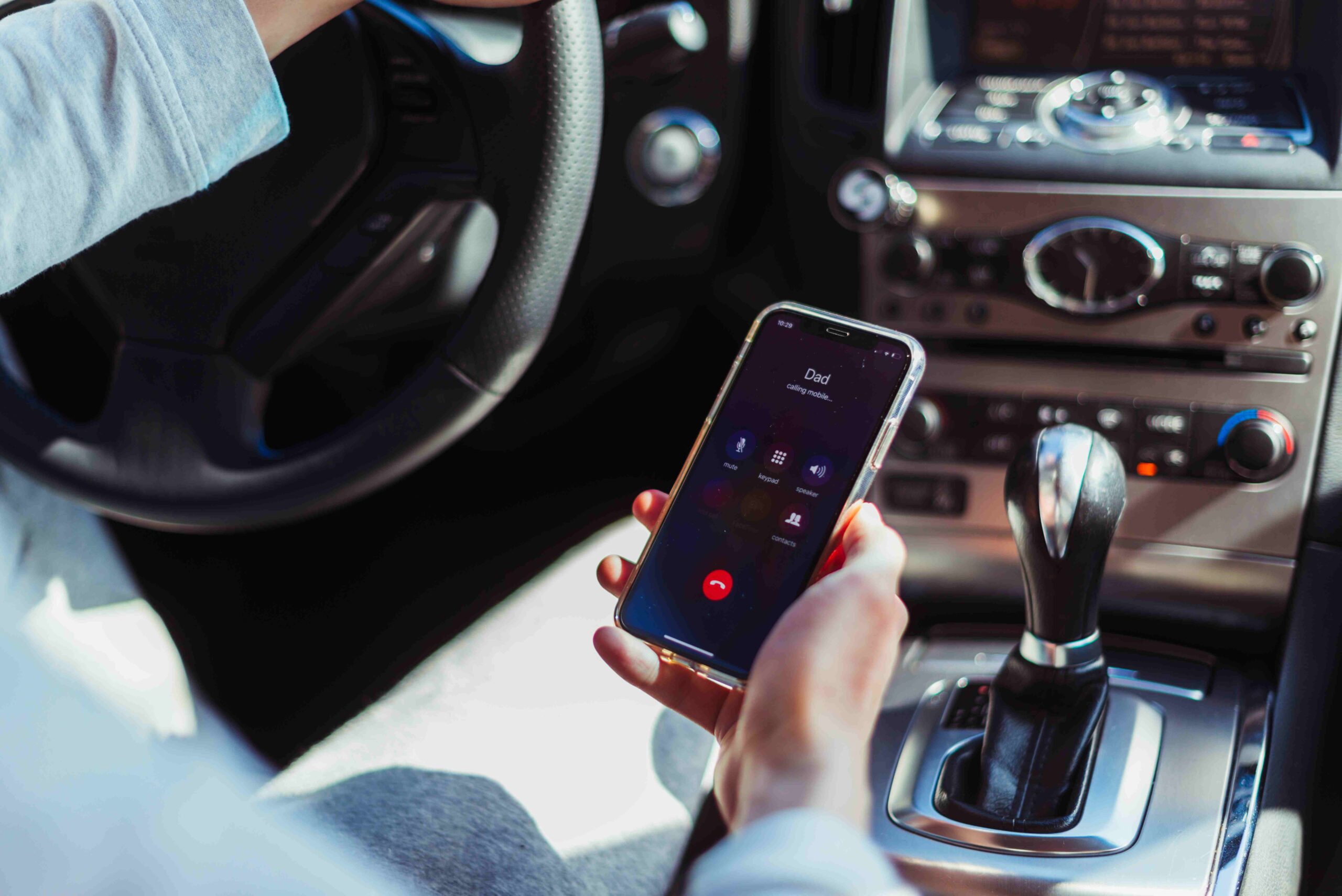
Why is it so important to update?
You will notice that every software improves with time.
Android Auto is also a Google product and Google adds new features and bug
fixes in every update. If you are using an old version then:
- Voice commands do not work properly.
- Maps freezes.
- Music app disconnects repeatedly.
- App closes while receiving calls.
I think there is only one way to avoid all these issues –
timely update. And honestly speaking, using the updated version is a different
kind of fun. The interface looks smooth, and you feel tension-free while
driving.
Step-by-step guide – in my style
Well now I will share with you the same simple steps which I
tried myself and worked instantly. Maybe you are also thinking that how to
update android auto on car will be difficult, but believe me it is very simple.
1. Checkup your phone
First of all, check the phone’s software. Open Play Store
and write Android Auto in the search bar. If the update is available, the
“Update” button will appear clearly. Many people make the mistake
here – the app is installed but they forget to update it.
2. Install the update
I tried it myself and it literally took 2-3 minutes. If your
internet is fast then it completes even faster. By the way, one tip is to use
Wi-Fi while updating, sometimes there is an issue with mobile data.
3. Connect it with the car
Now the phone has to be connected with the car system. There
are two options:
USB cable: This is the most reliable. I always prefer wired
connection because wireless hangs sometimes.
Wireless: If the car supports it, you can try it, but it is
best to use wired after the first update.
4. Don’t forget to restart
After the update, restart both the phone and the car system.
I remember I skipped this step once and then got confused why the update was
not reflecting. A simple restart solved the problem.
5. Test drive
Take a small drive and check the features. Try navigation,
music, and calls. If everything is running smoothly then assume that the update
has been successful.
A short story and tip
A friend of mine also had Android Auto in his car. He called
me and told me that the system is crashing repeatedly. I asked “Did you
update?” and the answer came “No friend, I did not feel it was necessary.” That
was the issue. As soon as I updated, all the problems were resolved. Then I got
further confirmation that updating is not optional, but mandatory.
Summary of Steps (friendly recap)
- Open Play Store and check for updates.
- Install the update (prefer Wi-Fi).
- Connect to the car (USB is best).
- Restart the phone and car system.
Take a short drive and test it.
This is the real simple way. Now whenever you think about
how to update android auto on car, there is no need to worry. Follow this
process once and everything will be smooth.
Features After
Update
When I updated Android Auto for the first time, honestly I
felt the difference immediately. Earlier when navigation used to run, there was
a little delay, but after the update the map opened immediately. I remember one
day I was getting late to the office and there was a traffic jam on the way. If
the update had not happened, the map might not have loaded and I would have got
stuck. But the new update gave me a smooth experience.
What new do you feel after the update?
You will notice that after the update the entire flow of the
car’s system seems to change. Some things that were highlighted in my
experience are:
Better voice control:
Now the “Hey Google” command responds instantly. Earlier it
had to be repeated 2-3 times. Now while driving you can easily say “Play music”
and the song starts within seconds.
Navigation speed:
I feel that the biggest upgrade is in navigation. The zoom
in/out of the map is fast and the routes load quickly.
New interface design:
Earlier the icons looked a bit outdated, now the updated
version feels very clean and modern. The screen looks attractive while driving
and is easy to use.
Stability and less crashes:
I liked this feature the most. Earlier, the app used to shut
down sometimes while receiving a call, now this problem is almost over.
Imagine how irritating it would be if you commute to office
daily and the system crashes repeatedly. That’s why I want to say that those
who are not updating till now, they are seriously missing out. If you are
confused about how to update android auto on car, then I have already shared
simple steps in part 1.
Common problems and their solutions
Even after the update, sometimes small issues come up. I
share with you those tips which I myself experienced and solved:
1. Phone is not connecting:
First of all try changing the USB cable. I was using the old
cable for a while and the system was disconnecting repeatedly. As soon as I
tried a new cable, the problem was resolved.
2. Screen goes black:
This problem often occurs when the car’s infotainment system
is not updated. Along with updating the phone, it is also important to update
the car’s software.
3. Battery drains fast:
Android Auto uses a lot of resources in the background. I
use a small trick – I close unnecessary background apps before starting the
drive. Battery drain reduces instantly.
4. The app crashes:
If you have tried all the steps and it still crashes, then
uninstall it once and install it again. I had to do this twice and both times
the problem was solved.
For more car and mobile related tips, definitely visit our homepage where you can find the best how-to guides.
Conclusion
I honestly feel that updating Android Auto is a must. You
will yourself notice that driving becomes safer and more fun after the update.
Imagine if the map opens in one command, calls are received smoothly and music
plays instantly – how easy the journey becomes.
So if you are still wondering how to update android auto on
car, then don’t delay. Try updating once, then you will yourself feel how big
the difference is.
And yes, a friendly tip: always keep both your phone and car
system updated. This habit will save you from unnecessary stress.