
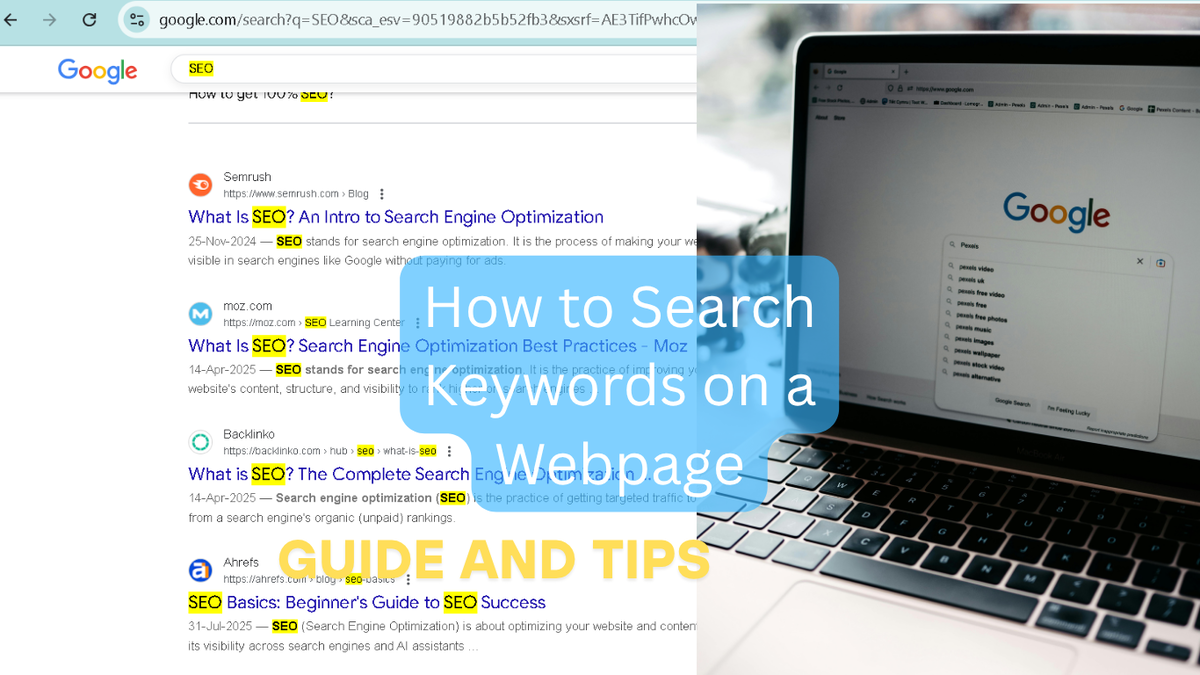
 How to Search Keywords on a Webpage
Have you ever tried to search for something on a webpage and literally thought, “Dude, where is this word?”  I remember the first time I wrote a blog post, I had to check a specific keyword on a competitor’s site. I scrolled and scrolled… and finally got irritated. Then someone told me that searching for keywords on a webpage is actually very simple – you just need to know the trick.
Well, this topic may seem small, but when you’re doing SEO or blogging, “how to search keywords on a webpage” becomes a very important skill. Imagine if you were checking the keyword density of an article or analyzing a competitor’s on-page SEO, and you had no idea where that keyword was located… how would the analysis be done?
This guide is apparently for beginners, but I honestly thought even advanced people sometimes forget basic things. So let’s start step by step.
 Background – What is the relationship of keywords to a webpage?
Keywords are essentially “trigger words” that tell Google what topic your page is about. If you want to find a keyword on a webpage, you want to see how many times that word appears, where it appears, and in what context.
I tried this myself when I was optimizing a blog for a client. I found his main keyword, but I was confused about whether he used it in the title or just in the content. A simple trick saved me that time (which I’ll share later  ).
).


 Importance – Why is this skill important?
I think if you’re into blogging, digital marketing, or SEO, “how to search keywords on a webpage” should be your daily routine. Its benefits include not only competitor analysis but also understanding the keyword placement of your posts.
Imagine if you want to see how many times you’ve typed “SEO tools” or “free keyword generator,” you’ll get tired of manually scrolling through it. But if you know a simple keyboard shortcut or browser feature, the whole job is done in seconds.
And honestly, these little things are what make you a professional. The rest of us are just scrolling, and you’ve already figured it all out with “Ctrl + F.”
 Step-by-Step Guide – How to Search Keywords on a Webpage
Now, I’m going to share the direct steps I use when I need to search for keywords on a webpage. Each step is simple, and you can apply it on Windows, Mac, or mobile devices.
 1. For Windows Users – Ctrl + F Magic!
The easiest shortcut is Ctrl + F. Once you’re on a webpage, simply press these two keys simultaneously.
A small search bar will open at the top or bottom of the screen.
Type your keyword in that bar – for example, “SEO tools” or “keyword research.”
You’ll notice that the browser will immediately highlight all occurrences of that word.
By the way, a pro tip: If you need an exact match, enable the case-sensitive option (available in Chrome).
I honestly thought the first time I tried this, I thought it only worked in Word documents. But when I tried it on a webpage, it was literally a “wow moment”!
 2. For Mac Users – Command + F Hero Move
Now, if you use a Mac, press Command + F instead of Ctrl.
Same process – a search bar will open, and after typing your keyword, it will be highlighted everywhere.
I remember using Safari once and thinking this trick might be limited to Chrome. But no! Safari, Chrome, and Firefox – this universal shortcut works in all browsers.
Just keep one thing in mind – if you’re searching for multi-word keywords (like “on-page SEO”), it’s important to type the exact phrasing.
 3. How to Search for Keywords on Mobile
Well, everyone ignores this, but it’s possible to search for keywords on mobile too.
Open a browser (like Chrome), then click on the three dots → select the “Find in page” option.
Type your keyword there.
You’ll notice that the results are automatically highlighted.
I tried this myself once while traveling without a laptop and urgently needed to check how many times a client had entered a keyword. This trick was literally a lifesaver!
 4. Browser Extensions & Tools – For Deep Analysis
If you need detailed keyword frequency rather than just keyword highlighting, some Chrome extensions are also useful.
Such as:
SEO Minion
Keyword Density Checker
Ahrefs Toolbar
These tools not only highlight keywords, but also show how many times a keyword is used, in which tags (H1, H2, paragraph), and what the density is.
I think this step is perfect for those who do professional blogging or freelancing SEO. Manual shortcuts highlight small things, but these tools give the full picture.
 5. Bonus Step – Copy & Search Offline
If the webpage is heavy or the “Find” feature doesn’t work (it happens occasionally), copy the entire text and paste it into Notepad or Word, then press Ctrl + F.
Isn’t it nice when old tricks come in handy in a new situation?
I used this trick once when the pop-ups on a news site were so overwhelming that I couldn’t see the keyword. Copying and pasting got the job done in seconds.
 Final Thoughts – Why It Matters
The seemingly straightforward topic of “how to search keywords on a webpage” conceals a wealth of SEO reasoning. It enables you to better customize your content by giving you insight into the viewpoints of your rivals.
I honestly thought SEO was limited to backlinks and meta tags, but when I started analyzing keyword placement, I realized the game is all about the details.
You’ll notice that when you search for keywords, your brain automatically switches to “SEO mode.” Well, one last tip—before publishing your article, always press “Ctrl + F” to check whether your keywords sound natural or forceful. This simple habit can improve your Google rankings.
 Features After Update – New Browsers Have Made Keyword Search So Easy
I remember when I was first learning how to search for keywords, the “Find” feature in older versions of Chrome and Firefox was basic. But now, new browser updates have literally changed the game.
Well, imagine if you used to have to manually scroll, and now you can scan all the data with just one shortcut—what a relief, isn’t it?
Earlier, it was just Ctrl + F or Command + F, but now browsers have added smart features.
For example, the new Chrome update tells you which section (heading, paragraph, table) a keyword is found in.
Firefox even added a “highlight all” option—meaning every keyword is highlighted at the same time, without having to manually press “next.”
I honestly wasn’t sure if these small updates would have much impact, but when I tested them, I realized productivity doubled. Especially when a client’s page is 5,000 words long—these features literally save lives
Advanced Tips – Keyword Search Ka Level Next
You see, keyword search isn’t just limited to “Find in page.”
Professional bloggers and SEO experts approach this process in a more advanced way.
I’ve personally tried some tools that give you keyword insights—meaning they not only show where a keyword is, but also tell you how many times and under which tags it’s used.
 1. Use Developer Tools (Inspect Element)
If you’re using Chrome, right-click → Inspect.
Then press Ctrl + F and type the keyword.
You’ll now see the HTML code of the webpage where the keyword is used.
This trick is gold for professional SEOs, as it shows whether the keyword is not just in visible text, but also in meta tags or image alt text.
I’ll be honest, the first time I tried this trick, I felt like a hacker
2. Use Keyword Density Tools
If you need deeper data, try these tools:
SEO Minion
Keyword Density Checker (Small SEO Tools)
Ahrefs Toolbar
These tools show the ratio of keywords and which phrases are repeated the most.
Imagine how easy it is to strategize if you find out that your competitor uses “SEO keyword research” 15 times, and you only use it 5 times! I’ve used the Ahrefs Toolbar myself, and believe it or not, I understood a competitor‘s entire keyword strategy. I simply noted their top three keywords and wrote my content better than that 
3. Keyword Search in PDFs or Online Docs
Well, people forget this point—if there’s an embedded PDF or online doc within a webpage, it’s possible to search for keywords in that as well.
When you open a PDF in Chrome, there’s also the Ctrl + F option.
Imagine if you find a research report and need to find “SEO trends,” there’s no need to manually scroll.
Just one shortcut and you’re done.
I used this trick once on an eBook that had 300+ pages—I found the required data in literally seconds.
 Common Problems & Solutions
Now let’s talk about common issues people face when searching for keywords. I think this section will be a lifesaver for beginners.
 Problem 1: Keywords Not Highlighting
Sometimes, after typing a keyword in the browser, nothing is highlighted.
 Solution: Check that the spelling is correct, and if the case-sensitive option is on, disable it.
Sometimes there’s an extra space—like “keyword” (a space)—which also blocks highlighting.
Problem 2: Missing Option in Mobile Browser
Many people are confused by the “Find in page” option not appearing on their phones.
Solution: Update your browser or check in incognito mode. Both Chrome and Edge have this feature under the “three dots menu.”
I tried it myself in Opera, and the option was a bit hidden there—I found “Find in page” after scrolling down. So patience is essential
 Problem 3: Keyword Hidden in Dynamic Content
Sometimes a webpage loads content via JavaScript, where the keyword “Find” doesn’t catch it.
Solution: Wait for the page to load or use Developer Tools (Inspect).
This is an advanced step, but effective.
I honestly thought it was a bug at first, but later realized it was a feature limitation. Now I always use “Inspect” if something seems missing.
 Conclusion – Small Trick, Big Impact
“How to search keywords on a webpage” may seem like a simple skill, but its impact is massive.
I honestly believe that until you understand keyword behavior, half of SEO is lost.
Imagine if you search for a keyword on a competitor’s site, you’re understanding their content blueprint—that’s great, isn’t it?
I think this guide is a complete guide for beginners.
Well, remember that SEO isn’t just limited to keyword search, but it’s the foundation—without it, it’s difficult to progress further.
So next time you’re on a webpage, just press a shortcut, type in the keyword, and enjoy the magic of analysis
If you liked this topic, be sure to also read How to Increase Blog Traffic in 2025—this article will help you practically apply the concept of “how to search keywords on a webpage.”
 FAQs – Common Questions About
Keyword Searching
FAQs – Common Questions About
Keyword Searching